AI Posture Correction for Zoom Meetings: 7 Fixes for Better Video Calls
If you work remotely, your posture during calls affects more than comfort. It changes how confident you look on camera, how long you can focus, and how your neck feels by the end of the day.
This guide gives you practical, beginner-friendly fixes you can apply in one session.
Why Zoom Posture Matters
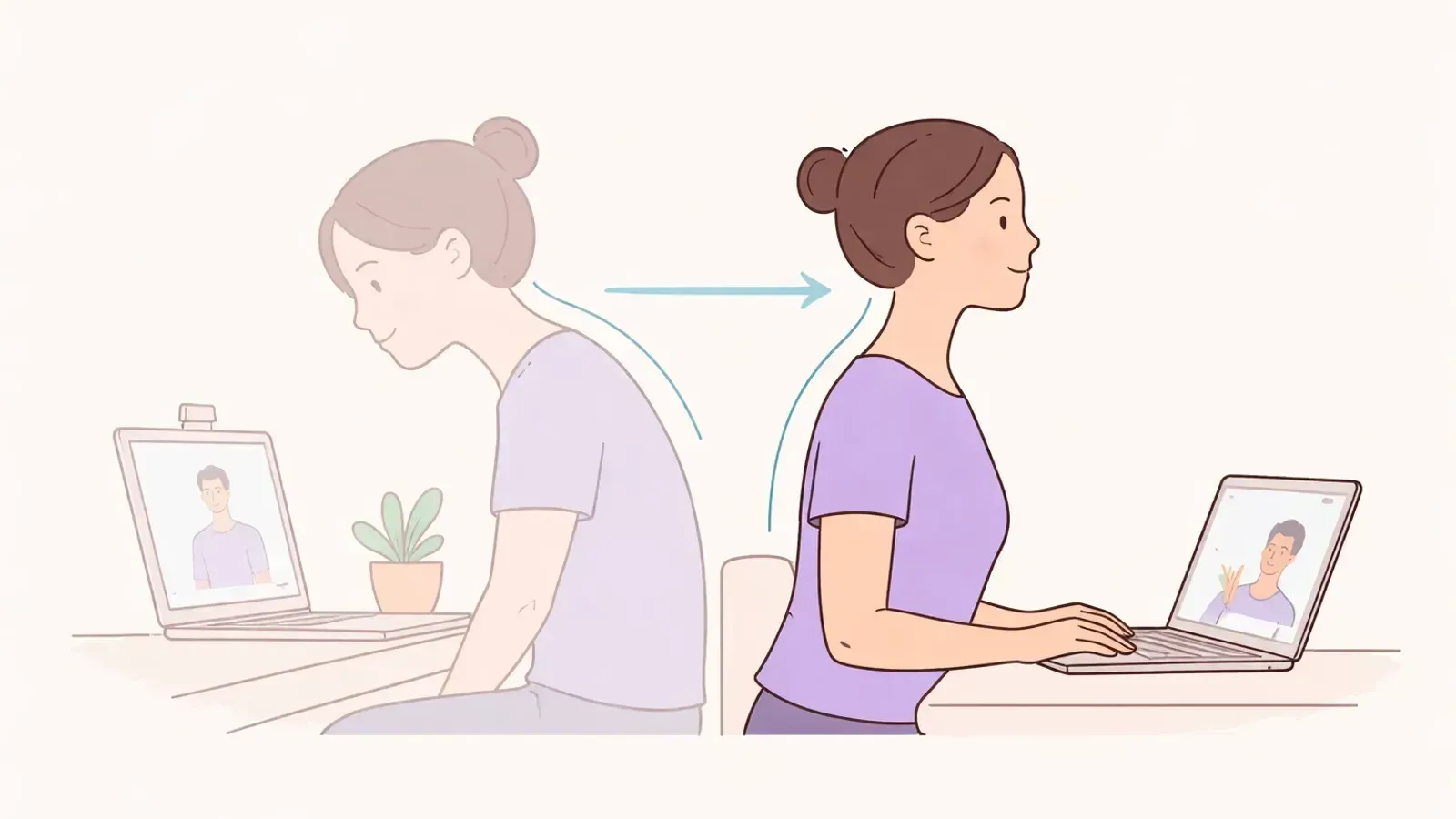
On long calls, most people slowly drift into forward head posture without noticing. That leads to neck strain, shoulder tension, and lower energy. Good posture is not about being rigid. It is about staying in a neutral position and resetting often.
If you are new to this, start simple: small setup changes plus gentle reminders work better than trying to "sit perfectly" all day.
7 Fixes You Can Apply Today
-
Put your camera at eye level
- Stack books under your laptop or use a stand.
- Keep your eyes in the top third of the frame.
- This reduces the urge to bend your neck forward.
-
Use the 90-90-90 baseline
- Feet flat on the floor.
- Knees around 90 degrees.
- Elbows around 90 degrees when typing.
- This is a stable default posture for most desk workers.
-
Bring keyboard and mouse closer
- If they are too far away, you reach forward and round your shoulders.
- Keep forearms supported and shoulders relaxed.
-
Center your main call screen
- During Zoom calls, keep the active window on your center monitor.
- If you use two screens, keep them close together to limit neck rotation.
- For a deeper setup guide, see Desk Ergonomics for Better Posture: The 10-Minute Setup.
-
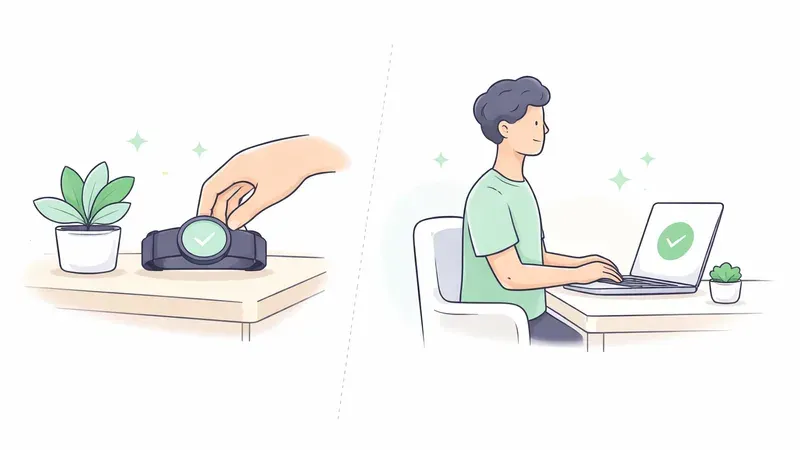
Use posture alerts during calls
- Gentle real-time reminders help when you get focused and forget.
- This is where AI posture tools are useful: they nudge you when your head and shoulders drift.
-
Take a 30-second reset every 25-30 minutes
- Roll shoulders back.
- Do one chin tuck.
- Stand for a short break if possible.
- These small resets prevent long slouch streaks.
-
Calibrate your "good posture" once
- Sit in your best neutral position.
- Save that as your baseline in your posture app.
- Better calibration means fewer false alerts.
Quick 2-Minute AI Setup for Zoom
- Open your posture app before the meeting.
- Grant webcam access.
- Sit tall and calibrate once.
- Keep sensitivity moderate so alerts stay helpful, not distracting.
- Start your call and let reminders run in the background.
Common Mistakes to Avoid
- Setting alerts too aggressive and then ignoring them.
- Using only a laptop on a low table for long calls.
- Trying to "force perfect posture" instead of improving gradually.
- Skipping movement breaks.
If forward head posture is already a recurring issue, pair this setup with a corrective routine from Forward Head Posture Correction: A Practical, Measurable Plan.
FAQ
Q: Can I use AI posture correction while on Zoom?
A: Yes. Most webcam posture apps can run alongside Zoom if configured correctly.
Q: Do I need a special camera?
A: No. A standard laptop or USB webcam is enough.
Q: Will this fix my posture instantly?
A: No. It improves awareness and consistency over time. Think habit-building, not instant cure.
Q: What if I use two monitors?
A: Keep your call window centered when possible and calibrate with your normal seated position.