Best Posture App for Dual Monitor Setup: A Practical 2026 Guide
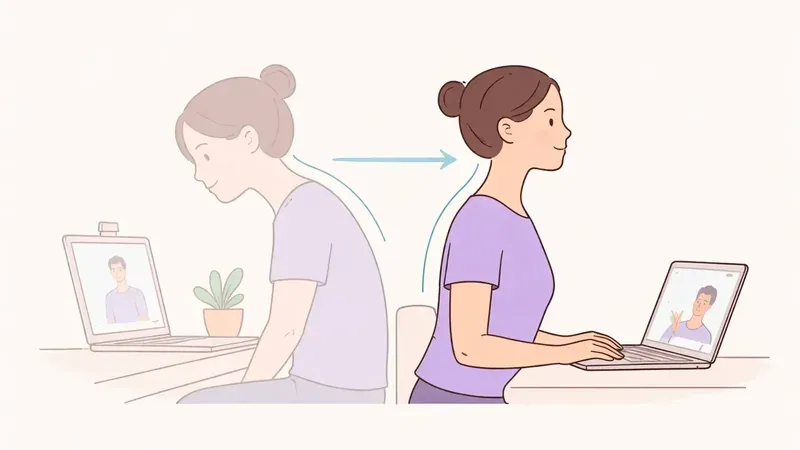
If you use two screens all day, posture issues can creep in faster than with a single monitor. Most people rotate to one side, push their head forward, and stay there too long.
This guide explains what makes a posture app effective for dual monitors and how to set it up so alerts stay useful instead of annoying.
What Makes a Posture App "Best" for Dual Monitors
For multi-screen work, the app itself matters less than how well it handles real desk behavior.
Look for these features:
- Easy baseline calibration so the app learns your neutral seated position quickly.
- Flexible alert tuning to reduce false alarms when you briefly glance at a side screen.
- Lightweight background use so it can run during coding, writing, and meetings.
- Clear privacy controls especially when a webcam is used for posture tracking.
- Fast reset flow so you can recalibrate after changing chair height or monitor angle.
A good posture app should coach consistency, not punish normal movement.
Dual Monitor Setup Rules That Matter Most
Before you blame the app, fix the workstation baseline:
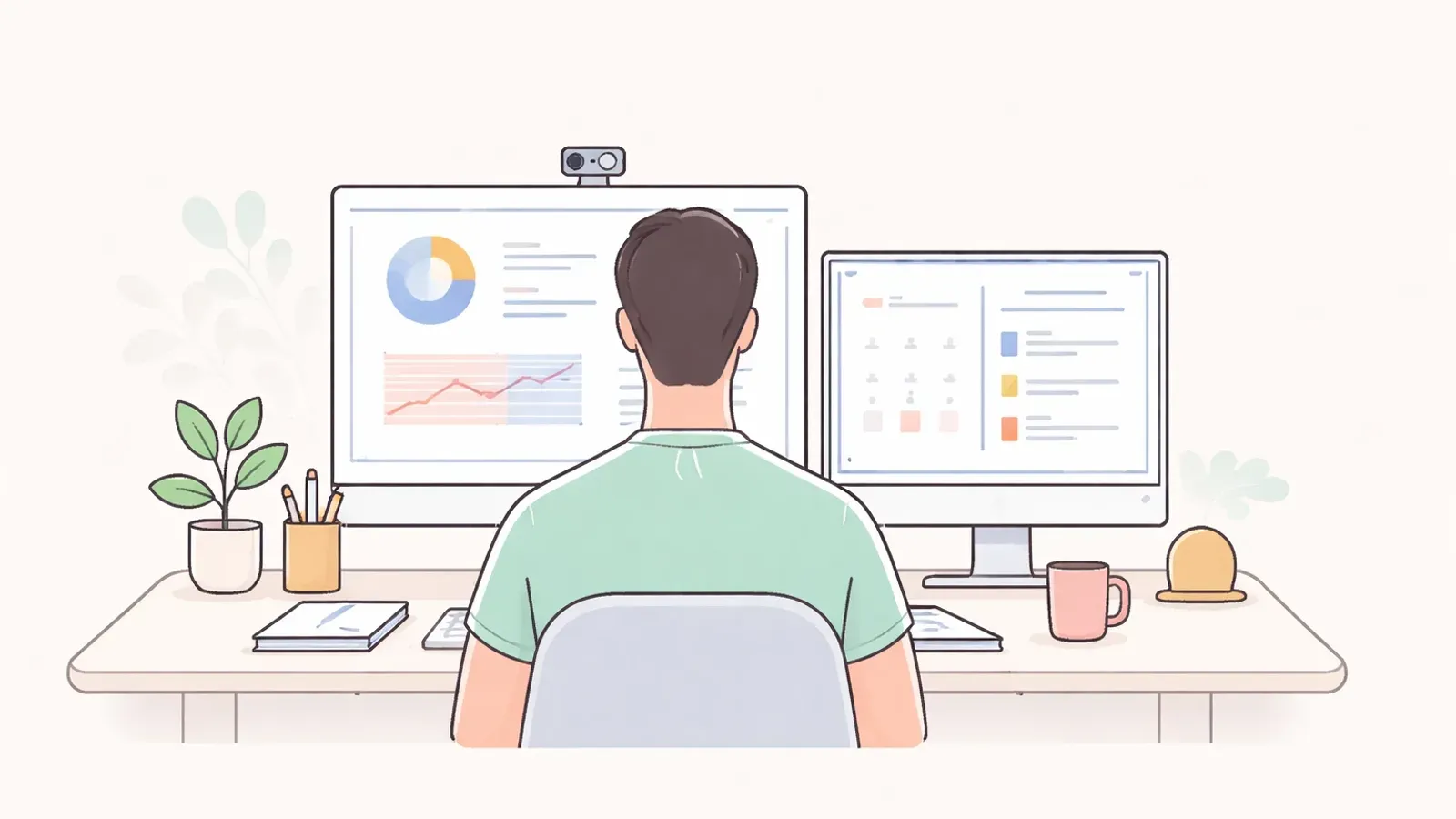
- Keep your primary monitor directly in front of you.
- Place the second monitor close enough to avoid large neck turns.
- Keep both monitor tops near eye level.
- Put webcam near the center line between screens when possible.
- Keep keyboard and mouse close so shoulders stay relaxed.
If your screens are too far apart, no software will fully compensate.
For a fast desk baseline, use Desk Ergonomics for Better Posture: The 10-Minute Setup.
Recommended App Pattern for Most Users
For most dual-monitor desk workers, the best option is a webcam-based posture app with moderate reminder sensitivity.
Why this pattern works:
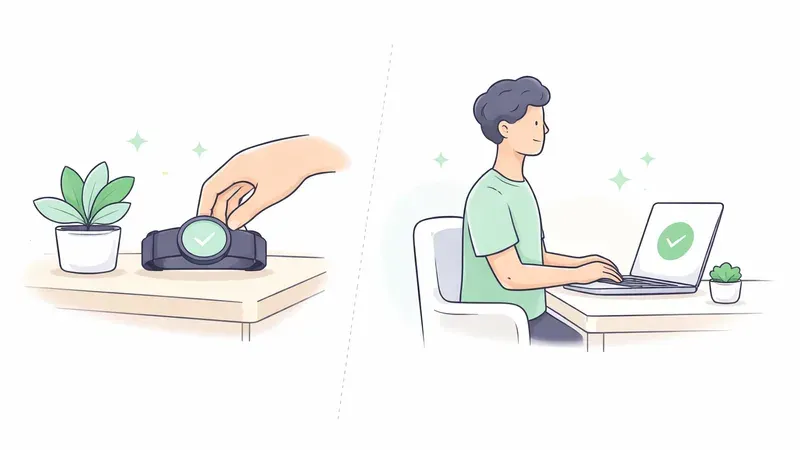
- No wearable to charge or attach.
- Easy to leave running during normal work blocks.
- Visual reminders help you catch drift from side-monitor bias.
- Calibration can be repeated quickly as your setup evolves.
If you are comparing wearable alternatives, see Upright Go Alternative for Mac Users: Best No-Wearable Options in 2026.
5-Minute Dual Monitor Calibration Workflow
- Sit in your best neutral position with both feet grounded.
- Face your primary monitor and run calibration.
- Check side monitor glance angle and keep rotation small.
- Start with medium sensitivity for the first 2-3 days.
- Add a 30-second reset break every 25-30 minutes.
This combination usually beats high-sensitivity alerts with no break routine.
Common Failure Points
- Monitors are too far apart, forcing repeated neck rotation.
- Alert sensitivity is set too aggressive on day one.
- You skip recalibration after changing desk or chair position.
- You rely on reminders but ignore movement breaks.
If forward head posture is already persistent, combine reminders with Forward Head Posture Correction: A Practical, Measurable Plan.
FAQ
Q: Is there a posture app made only for dual monitors?
A: Usually no. The best results come from configuring a general posture app correctly for a dual-monitor desk.
Q: Where should my webcam sit with two monitors?
A: Near the center line between screens, ideally close to your primary monitor position.
Q: Should I use high sensitivity for faster results?
A: Not at first. Moderate sensitivity improves consistency and reduces alert fatigue.
Q: Can dual monitors still be ergonomic?
A: Yes. Keep screens close, matched in height, and centered around your normal workflow.